
KUKA smartPAD Teach Pendant Black Screen, Touch Failure, and Communication Fault Repair
When a KUKA smartPAD experiences a black screen, touch failure, abnormal buttons, or communication interruption with the control cabinet, the power supply, connection cables, emergency stop, and internal components should be checked.
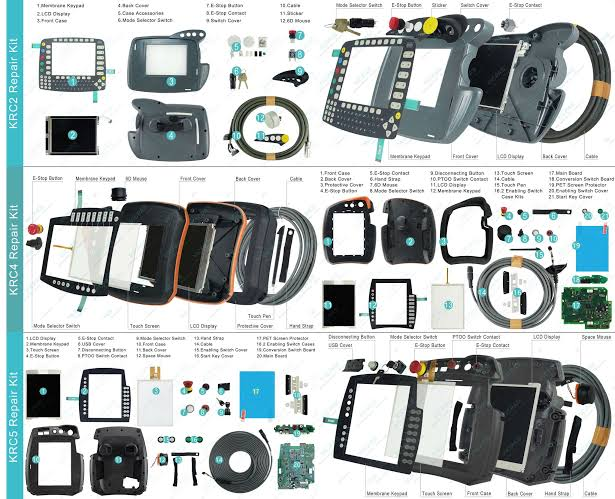
The smartPAD is a commonly used operating terminal for KUKA robots. Teach pendant faults may affect program editing, mode switching, manual operation, and safety circuit status.
The key to on-site diagnosis is first determining the fault scope, then deciding on the repair target. During the inspection process, record alarms, axis numbers, robot posture, and recurrence conditions to avoid replacing components based solely on a single alarm.
- Common Fault Manifestations
- smartPAD black screen or stuck on the startup interface after the control cabinet is powered on.
- Touchscreen offset, local unresponsiveness, or automatic jumping.
- Abnormal buttons, key switch, emergency stop, or enabling switch.
- Teach pendant connection to the control cabinet is interrupted or frequently restarts.
- Possible Causes
- Abnormal teach pendant power supply or connection cable.
- Damaged display screen, backlight, touch component, or internal mainboard.
- Poor contact in the emergency stop and enabling circuits.
- Interface liquid ingress, damaged pins, or broken cable cores.
- Control cabinet startup or system software abnormality.
- On-site Troubleshooting Sequence
- Record the control cabinet status and smartPAD startup behavior.
- Check the teach pendant cable, plug, power supply, and interface pins.
- Test touch, buttons, emergency stop, enabling, and mode switches.
- Check display, backlight, and internal connections.
- After ruling out control cabinet issues, proceed to repair or replace smartPAD components.
- Verification Before Replacing Components
Verify the smartPAD hardware version, control cabinet model, interface, and system compatibility. Save robot programs and system configurations before repair.
Similar appearance does not mean direct replacement is possible. Before procurement, provide the complete equipment model number, original component nameplate, interface photos, controller model, and alarm information.
- Post-Repair Verification and Commissioning
After restoration, test startup, display, touch, buttons, emergency stop, enabling, mode switching, manual operation, and automatic programs.
After repair completion, also save the inspection results, replaced component part numbers, and final parameters to facilitate tracking by subsequent maintenance personnel.
- Summary
When handling such faults, troubleshoot in the order of alarm records, power supply and connections, feedback circuits, mechanical load, and the component itself. Only after external conditions are confirmed normal can you further determine if the target component requires repair or replacement.
Industrial Robot Repair Hotline: +86 18122009539
Contact Repair Engineer: +86 18122009539